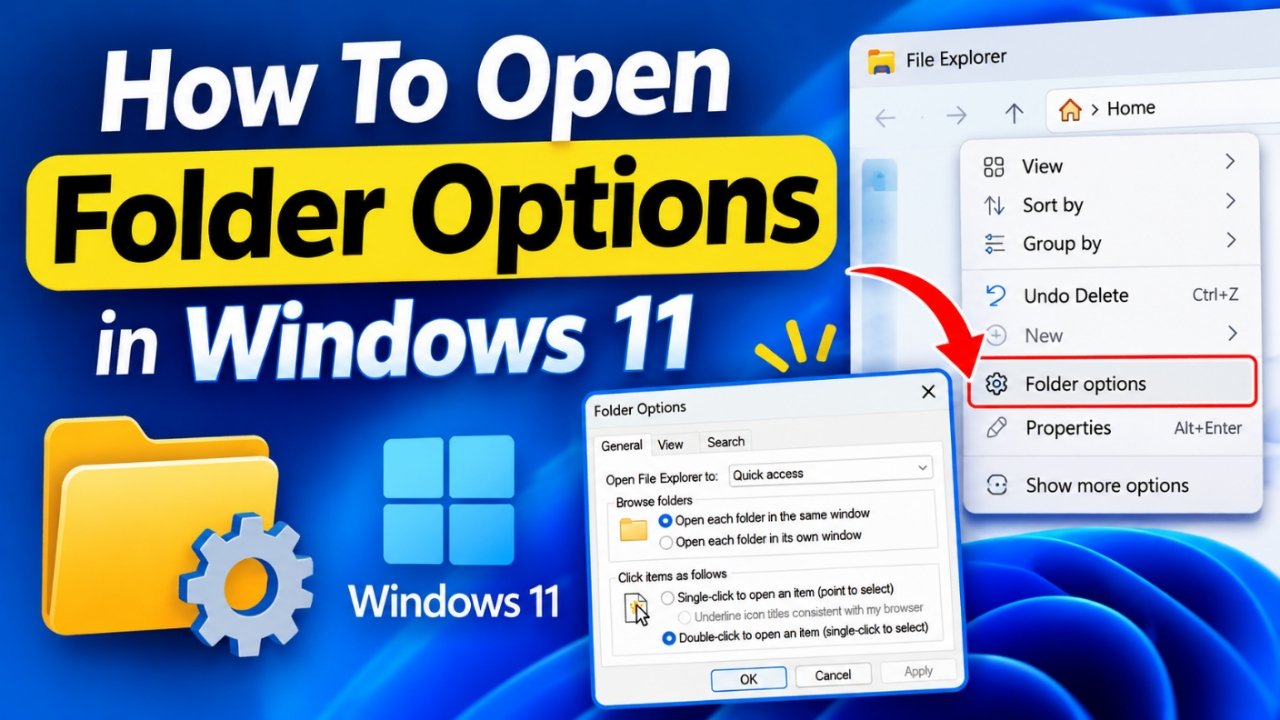
Windows 11 still includes Folder Options, but the way to access them has changed from older versions of Windows. If you are used to the classic Tools > Folder Options menu, you may not find it in the redesigned File Explorer.
In Windows 11, you can open Folder Options directly from the File Explorer toolbar. You can also access the same settings through Windows Search or Control Panel.
This guide explains how to open Folder Options in Windows 11, what each tab does, and how to change common settings such as showing hidden files, displaying file extensions, and controlling folder behavior.
Also Read: How to Enable Gmail Dark Theme on Android (2026 Guide)
How to Open Folder Options in Windows 11
The quickest way to access Folder Options is through File Explorer. You do not need administrator permissions to open this window or change its usual settings.
Follow these steps:
- Press Windows + E on your keyboard to open File Explorer.
- Look at the toolbar near the top of the window.
- Click the See more button (three horizontal dots).
- Select Options from the dropdown menu.
- The File Explorer Options window will appear.
Depending on your Windows 11 version, the settings window may be called File Explorer Options or Folder Options. Both names refer to the same settings area.
Once the window opens, you can adjust folder behavior, privacy preferences, display settings, and search options.
Other Ways to Open Folder Options in Windows 11
If you cannot access the Options command from File Explorer, there are other ways to reach the same settings.
1. Use Windows Search
Windows Search provides a quick alternative.
- Click the Start button.
- Select the search box.
- Type File Explorer Options.
- Select the matching result.
The settings window should open directly without requiring you to navigate through File Explorer.
2. Use Control Panel
You can also find Folder Options through the classic Control Panel.
- Open Start.
- Search for Control Panel and launch it.
- Select Appearance and Personalization.
- Click File Explorer Options.
This method is useful if you are already working in Control Panel or prefer the traditional Windows settings layout.
Understanding the General Tab in Folder Options
The General tab contains settings that control how File Explorer opens and how you interact with folders.
Here are the main options you can change.
Choose Where File Explorer Opens
The Open File Explorer to setting lets you select the starting location when you launch File Explorer.
Depending on your Windows version, available choices include:
- Home: Opens the Home page, which can display pinned locations and recent items.
- This PC: Opens a view of your drives, storage devices, and common folders.
If you prefer accessing your drives immediately, selecting This PC may be more convenient.
Change How Folders Open
The Browse folders section provides two choices:
- Open each folder in the same window: Opens a new folder in the current File Explorer window.
- Open each folder in its own window: Creates a separate window whenever you open another folder.
Choose the option that best matches your browsing habits.
Change Single-Click and Double-Click Behavior
Under Click items as follows, you can decide how Windows opens files and folders.
- Single-click to open an item: Opens a file or folder with one click.
- Double-click to open an item: Requires two clicks, which is the traditional Windows behavior.
If you frequently select files while organizing folders, double-click behavior may help prevent accidental openings.
Manage File Explorer Privacy
The Privacy section controls some of the activity displayed in File Explorer Home and Quick access.
You can:
- Show recently used files.
- Show frequently used folders.
- Clear File Explorer history.
If you share your computer with other people, disabling recent and frequently used items can help keep your browsing activity from appearing in these sections.
Selecting Clear removes the relevant File Explorer history. It does not delete your actual documents or folders.
How to Use the View Tab in Folder Options
The View tab contains settings that control how files and folders appear in File Explorer.
It is particularly useful if you want to customize folder layouts or change the visibility of certain file types.
Apply the Same Folder View to Similar Folders
Suppose you prefer viewing documents in Details layout with columns such as Name, Date modified, and Size.
Instead of configuring every similar folder individually, you can use the Apply to Folders option.
Follow these steps:
- Open a folder in File Explorer.
- Select your preferred layout using the View menu.
- Adjust the columns if necessary.
- Open See more > Options.
- Select the View tab.
- Click Apply to Folders.
- Confirm the change if Windows asks.
Windows will apply the current folder’s view settings to folders of the same type.
If you want to undo this customization, select Reset Folders in the View tab.
Change Advanced File and Folder Settings
The Advanced settings section contains several options that affect how File Explorer displays information.
Some commonly used settings include:
- Show hidden files, folders, and drives.
- Show file extensions for known file types.
- Display the full path in the title bar.
- Hide protected operating system files.
- Change how folder contents are displayed.
Be careful when changing advanced settings. Some options are designed to protect important Windows files from accidental modification.
For example, hiding protected operating system files helps prevent users from accidentally deleting or changing files required by Windows.
What Does the Search Tab Do?
The Search tab controls certain aspects of how File Explorer searches for files and folders.
Its settings can affect searches in locations that are not indexed by Windows Search.
Depending on the available options, you may be able to control whether searches include:
- System directories.
- Compressed files.
- File contents instead of just file names and properties.
Most users can leave these settings unchanged.
However, if File Explorer cannot find a file you know exists, reviewing the Search settings may help. Windows Search indexing settings are another place to investigate.
How to Show Hidden Files in Windows 11
You do not have to open Folder Options every time you want to view hidden files. Windows 11 includes a shortcut directly in the File Explorer toolbar.
Here is how to use it:
- Open File Explorer.
- Click View in the toolbar.
- Move to Show.
- Select Hidden items.
Hidden files and folders should now become visible.
You can also enable the same setting through Folder Options:
- Open See more > Options.
- Select the View tab.
- Find the Hidden files and folders setting.
- Select Show hidden files, folders, and drives.
- Click Apply, followed by OK.
Remember that hidden does not mean unnecessary. Some hidden files are used by applications or Windows itself, so avoid deleting unfamiliar files.
How to Show File Extensions in Windows 11
File extensions identify the type of a file. For example:
.txtidentifies a text file..jpgidentifies a JPEG image..pdfidentifies a PDF document..exeidentifies an executable program.
Windows may hide extensions for recognized file types by default.
To display them, follow these steps:
- Open File Explorer.
- Click View.
- Select Show.
- Click File name extensions.
File names will now display their extensions.
You can also change this setting through Folder Options:
- Open File Explorer Options.
- Go to the View tab.
- Find Hide extensions for known file types.
- Clear the checkbox.
- Select Apply and then OK.
These two methods control the same setting. You only need to use one of them.
Displaying extensions can make it easier to distinguish between different file types and identify files with unexpected extensions.
How to Restore Default Folder Options in Windows 11
If you have changed several settings and want to return to the standard configuration, Windows provides a Restore Defaults button in each tab.
You can reset the settings as follows:
- Open File Explorer.
- Select See more > Options.
- Open the General tab and click Restore Defaults.
- Switch to the View tab and select Restore Defaults.
- If you previously used Apply to Folders, select Reset Folders if needed.
- Open the Search tab and click Restore Defaults.
- Select Apply and then OK.
This restores the default preferences for the Folder Options tabs.
Important: Restoring Folder Options does not delete your personal files, documents, or folders. It resets the preferences managed by this settings window.
Common Folder Options Problems in Windows 11
Sometimes the settings window may be difficult to find, especially if you are following instructions written for Windows 10 or older versions.
Here are a few common issues and their solutions.
| Problem | What to do |
|---|---|
| No Tools menu in File Explorer | Use See more (three dots) > Options. |
| Cannot find Folder Options | Search for File Explorer Options from Start. |
| Hidden files are not visible | Enable View > Show > Hidden items. |
| File extensions are missing | Enable View > Show > File name extensions. |
| Folder layouts look different | Review the View tab and Apply to Folders settings. |
| Recent files still appear | Review the General tab’s Privacy settings. |
If the toolbar looks different on your computer, try the Start menu search method. The exact appearance of File Explorer can vary between Windows 11 releases.
Frequently Asked Questions
Are Folder Options and File Explorer Options the same?
Yes. Folder Options and File Explorer Options refer to the same settings window in Windows 11. The newer name is commonly used in Control Panel, while older tutorials may still use Folder Options.
Where is the Tools menu in Windows 11 File Explorer?
Windows 11 does not use the old Tools menu in its standard File Explorer toolbar. To access the commands previously found there, click the three-dot See more button and select Options.
Can I open Folder Options using a keyboard shortcut?
There is no dedicated standard keyboard shortcut that directly opens the Folder Options window.
However, you can press Windows + E to launch File Explorer, then use keyboard navigation to reach the See more menu and select Options. Alternatively, search for File Explorer Options from the Start menu.
Do I need administrator access to change Folder Options?
No. Most regular Folder Options settings can be changed using a standard Windows user account. Some system-level file operations may still require additional permissions.
Can I show hidden files without opening Folder Options?
Yes. Open File Explorer, select View > Show > Hidden items. This is the quickest way to display hidden files and folders.
How do I display file extensions in Windows 11?
Open File Explorer and select View > Show > File name extensions. Windows will then display extensions such as .txt, .jpg, and .pdf alongside file names.
Will restoring Folder Options delete my files?
No. Restoring defaults changes File Explorer preferences. It does not delete your personal documents, photos, or other stored files.
Also Read: How to Set App Lock in Vivo Phones (2026 Guide)
Conclusion
Opening Folder Options in Windows 11 is straightforward once you know where Microsoft moved the command. The easiest method is to launch File Explorer, click the three-dot See more menu, and select Options.
From there, you can control how folders open, manage privacy settings, customize folder layouts, display hidden files, and change file extension visibility.
For common tasks such as showing hidden files or displaying extensions, the View > Show menu is even quicker. Choose the method that best suits the setting you want to change.