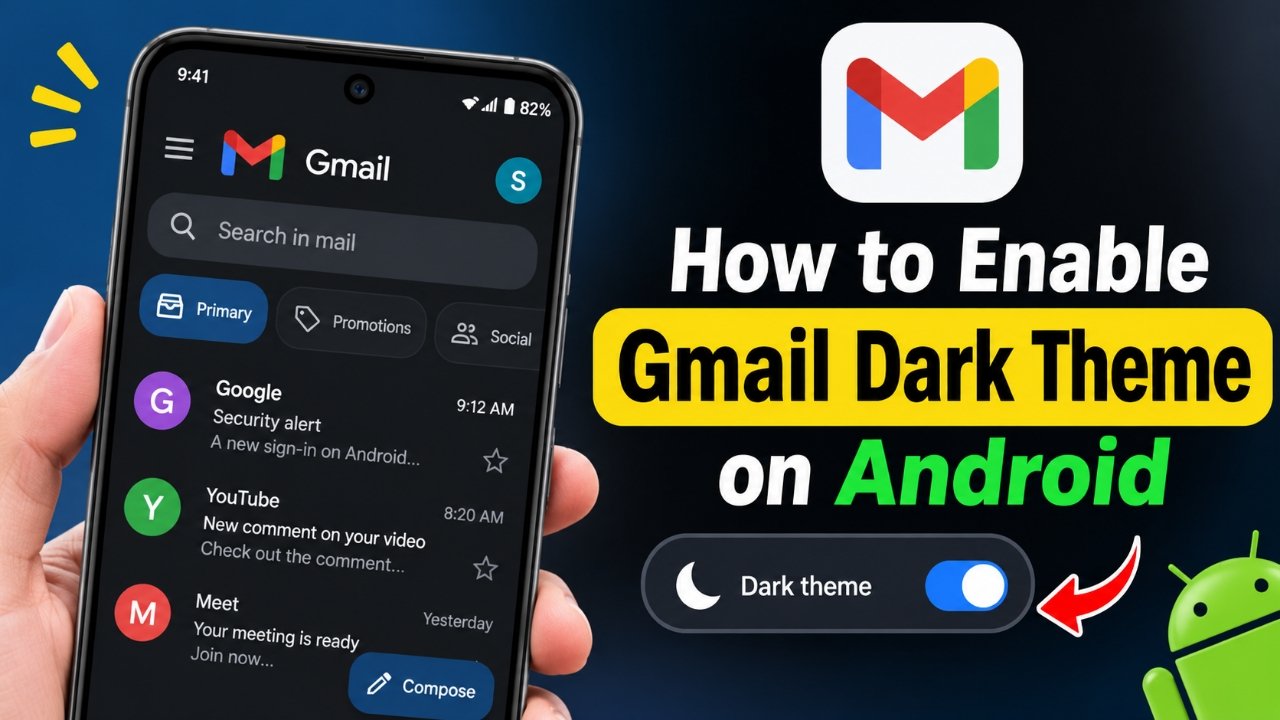
Gmail’s bright white interface can be uncomfortable when checking emails at night. Switching to dark mode gives the app a darker appearance, making it easier to read messages in low-light conditions. It may also help reduce battery consumption on Android phones with OLED or AMOLED displays.
The good news is that Gmail includes a built-in dark theme, so you don’t need to install another app or change any advanced settings. You can enable it manually or configure Gmail to follow your phone’s dark mode schedule.
This guide explains how to enable Gmail dark mode on Android, make it switch automatically, fix common problems, and understand why some emails may still have a white background.
Also Read: How to Set App Lock in Vivo Phones (2026 Guide)
How to Enable Gmail Dark Theme on Android
The easiest way to enable dark mode is through Gmail’s built-in theme settings. You can choose a permanently dark appearance without changing your Android phone’s overall display settings.
Follow these steps:
- Open the Gmail app on your Android phone.
- Tap the three-line menu icon in the top-left corner.
- Scroll down and select Settings.
- Tap General settings.
- Select Theme.
- Choose Dark from the available options.
Once selected, Gmail should immediately switch to its dark appearance. The inbox, navigation menu, and supported parts of the email interface will use darker colours.
You can keep this setting enabled even if your Android phone continues using its regular light theme.
How to Make Gmail Follow Your Android Dark Mode Settings
If you prefer not to switch between light and dark themes manually, Gmail can follow your Android device’s system appearance.
This is useful if you want Gmail to become dark at night and return to its light appearance during the day.
Step 1: Change Gmail’s Theme to System Default
First, open Gmail and follow these steps:
- Tap the three-line menu icon.
- Open Settings.
- Select General settings.
- Tap Theme.
- Choose System default.
With this option selected, Gmail will follow your Android phone’s current light or dark appearance.
Step 2: Enable Dark Mode on Android
Now, change your phone’s display settings.
- Open the Android Settings app.
- Select Display.
- Find the Dark theme or Dark mode option.
- Turn it on.
The exact names and menu locations may vary depending on your Android version and phone manufacturer.
If Gmail is set to System default, it should now switch to dark mode along with your device.
Step 3: Schedule Dark Mode Automatically
You can also schedule Android’s dark theme so that it activates at specific times.
Depending on your phone, scheduling options may include:
- Sunset to sunrise: Dark mode activates around sunset and switches off around sunrise.
- Custom schedule: Choose the times when dark mode should turn on and off.
- Bedtime schedule: Some Android devices offer dark mode scheduling through bedtime-related settings.
Once you configure the schedule, Gmail should follow the same changes automatically, provided its theme remains set to System default.
Why Are Some Emails Still White in Gmail Dark Mode?
Enabling Gmail’s dark theme does not guarantee that every email will have a completely dark background.
You may notice that the Gmail interface looks dark while certain messages still have large white sections.
This usually happens because of how the sender designed the email.
Many promotional messages, newsletters, shopping receipts, and marketing emails use custom HTML formatting. Their creators can specify background colours directly in the email’s design.
When a sender explicitly sets a white background, Gmail may not be able to replace it with a dark colour.
As a result:
- Gmail’s navigation and inbox can remain dark.
- Most supported email content may adapt to dark mode.
- Some promotional messages may retain white backgrounds.
- Company logos, images, and branded elements may keep their original colours.
This is generally a limitation of the individual email’s design rather than a problem with your Gmail settings.
Gmail Dark Theme Not Working on Android? Try These Fixes
If Gmail continues displaying a white interface after you enable dark mode, a few basic troubleshooting steps may help.
1. Check Gmail’s Theme Settings
Start by checking whether Gmail is actually configured to use a dark appearance.
Open:
Gmail → Settings → General settings → Theme
Select Dark if you want Gmail to remain dark regardless of your phone’s display settings.
If you choose System default instead, make sure Android’s dark theme is enabled.
2. Restart the Gmail App
Sometimes, an app may not immediately reflect a display setting change.
Try the following:
- Close Gmail.
- Open your phone’s recent apps screen.
- Remove Gmail from the recent apps list.
- Launch Gmail again.
Check whether the dark theme is now working.
3. Clear Gmail’s Cache
Temporary app data can occasionally cause display-related glitches.
To clear Gmail’s cache:
- Open your Android phone’s Settings.
- Go to Apps or App management.
- Find and select Gmail.
- Tap Storage or Storage & cache.
- Select Clear cache.
This removes temporary cached files without intentionally deleting your emails or account information.
Avoid selecting Clear storage or Clear data unless you understand the consequences, as these options can reset local app settings and information.
4. Update Gmail
An outdated app version may contain bugs that affect its appearance or behaviour.
Open the Google Play Store, search for Gmail, and check whether an update is available.
If one is available, install it and reopen the app.
5. Check Android’s Dark Theme Compatibility
If you use System default, make sure your phone is actually running in dark mode.
Some Android manufacturers offer additional appearance settings that can affect how individual apps display.
Check your phone’s Display settings and confirm that Dark theme is enabled.
The availability of additional forced-dark or expanded-dark options depends on the Android version and device manufacturer. These options are not universal, so avoid assuming that every Android phone supports them.
Why Should You Keep Gmail in Dark Mode?
Dark mode is not just a visual preference. It can also offer practical benefits, depending on how and where you use your phone.
More Comfortable Reading at Night
A bright white screen can feel uncomfortable when you’re reading emails in a dark room.
Gmail’s dark theme reduces the amount of bright interface displayed, which some people find more comfortable during nighttime use.
However, dark mode does not guarantee reduced eye strain for everyone. Screen brightness and surrounding lighting also matter.
Potential Battery Savings
Dark mode can help reduce battery consumption on phones with OLED or AMOLED displays.
These display technologies can switch off individual pixels when displaying black. As a result, showing darker content may require less power than displaying a bright white interface.
The actual savings depend on your phone, display technology, brightness level, and how much of the screen is dark.
On traditional LCD screens, dark mode generally offers less of a display-related battery advantage because the backlight remains active.
A Less Bright Interface
If you regularly check work emails, personal messages, or notifications late at night, a darker interface may be easier to look at in a dim environment.
It also gives Gmail a consistent appearance when the rest of your Android phone is using dark mode.
How to Turn Off Dark Mode in Gmail on Android
If you no longer want to use the dark theme, switching back to the light appearance is straightforward.
Follow these steps:
- Open the Gmail app.
- Tap the three-line menu icon.
- Go to Settings.
- Select General settings.
- Tap Theme.
- Choose Light.
Gmail should immediately return to its regular light appearance.
Remember that selecting Light keeps Gmail bright even if your Android phone is using dark mode.
Frequently Asked Questions
1. Can I enable dark mode in Gmail without changing my Android theme?
Yes. Open Gmail’s Settings, go to General settings, select Theme, and choose Dark. This allows Gmail to use dark mode independently of your phone’s system appearance.
2. Why does Gmail keep switching back to light mode?
Check whether Gmail’s theme is set to System default. If it is, Gmail will follow your Android phone’s display settings. To keep Gmail dark all the time, select Dark manually.
3. Why do some emails have a white background even when dark mode is enabled?
Some email senders use HTML formatting that specifies a white background. Gmail may not be able to override those colours, so certain promotional messages, receipts, and newsletters can remain white.
4. Does Gmail dark mode save battery?
It can help conserve battery on phones with OLED and AMOLED displays because black pixels can switch off. The benefit is generally smaller on LCD displays, and actual savings depend on your device and usage.
5. How do I make Gmail turn dark automatically at night?
Set Gmail’s theme to System default. Then enable a dark mode schedule in your Android phone’s Display settings. Gmail should follow the scheduled changes automatically.
6. Does Gmail dark mode work on every Android phone?
Gmail’s theme settings are available on supported Android versions, but the exact menu layout and system integration can vary by device and app version. If you cannot find the Theme option, check whether Gmail needs an update.
Also Read: What Is Fastboot Mode on Vivo Phones? How to Enter, Use, and Exit It
Conclusion
Enabling Gmail dark theme on Android takes only a few steps. You can select Dark directly from Gmail’s General settings or choose System default to make the app follow your phone’s appearance.
For automatic switching, configure a dark mode schedule in Android’s Display settings. If Gmail does not change its appearance, check the theme selection, restart the app, clear its cache, or install an available update.
Keep in mind that some emails may still have white backgrounds because of their original formatting. Apart from that limitation, Gmail’s dark theme offers a convenient way to enjoy a darker interface, particularly when checking messages at night.